Currently at
http://resonatesolutions.com.au I’ve had the opportunity to delve into the latest release of Orchard CMS (version 1.4), however working with customising certain components can be quite cumbersome, especially when the eBooks and documentation on Orchard is quite thin. Most of my success has come from reverse engineering some of the core modules that are provided in the open source version of the install. The following are some of the issues that have provided time consuming problem-solving exercises:
1. Directory Listing issue
Quite frequently I used to get this error when starting my orchard application:
Directory Listing -- /OrchardLocal/


        Monday, June 25, 2012 12:51 PM        <dir> App_Data
        Monday, July 09, 2012 11:26 AM        <dir> bin
      Wednesday, May 30, 2012 03:35 PM        <dir> Config
      Wednesday, May 30, 2012 03:37 PM        <dir> Core
        Tuesday, May 22, 2012 12:58 PM          103 Global.asax
        Tuesday, May 22, 2012 12:58 PM        2,124 Global.asax.cs
      Thursday, June 21, 2012 10:23 PM        <dir> Media
        Friday, July 06, 2012 06:55 PM        <dir> Modules
        Sunday, July 08, 2012 01:50 PM        <dir> obj
      Thursday, June 28, 2012 12:42 PM       13,574 Orchard.Web.csproj
      Thursday, June 28, 2012 12:42 PM        1,170 Orchard.Web.csproj.user
      Wednesday, May 30, 2012 03:35 PM        <dir> Properties
        Tuesday, May 22, 2012 12:59 PM          442 Refresh.html
        Monday, July 02, 2012 01:36 PM        <dir> Themes
        Friday, June 22, 2012 04:26 PM        9,177 Web.config
After pulling my hair out trying to find out whether this was an IIS issue or whether it was a file permission issue with the ASPNET account, I found that the problem actually lay with an exception that had occurred before Orchard’s URL rewriting had kicked in, thus allowing the site to land in the default directory which incidentally didn’t have a default file associated with it.
Even if you were to navigate to a bookmarked URL it would give the notorious yellow screen of death with the 404 server error:
The resource cannot be found.
In order to solve this problem you will have to go to the log file to find the actual error found in /App_Data/Logs/orchard-error-yyyy.MM.dd.log
The information provided there is the exact stack trace of your code, to help you solve your problem and just like magic the site will start working again.
If only Orchard handled this a lot better…
2. Changing a property name of a ContentPartRecord in your Custom Module
Another issue relates to Orchard’s choice of ORM, NHibernate and its caching capabilities.
Say, for example, you had the following ContentPartRecord in your Models folder of your Custom Module:
     public class   PulseLookupRecord : ContentPartRecord

    {

         public virtual   string ConnectionString { get;   set; }

    }
If we were to rename this to ConnectionString1, then rename the database column that relates to this, this should work fine if we rebuild our module and start the Orchard web application.
However the application starts we will notice that the field that this property is associated with will not be rendered, and Orchard’s notorious silent errors will have vital information that we have missed. When looking at the log file we notice the following error message:
NHibernate.PropertyNotFoundException: Could not find a getter for property 'ConnectionString1' in class 'Pulse.Lookup.Models.PulseLookupRecord'
We would assume that since we have updated all the required field properties that NHibernates mapping should just work as it should, however the problem exists because NHibernate’s mapping is actually cached in a file stored in \App_Data\Sites\Woolworths\mappings.bin.
Simply removing this file will force Orchard to rebuild its NHibernate mapping and everything will then work fine.
3. Accessing the connection string dynamically
The only place that you can find the connection string that was set initially when cooking a new site or tenant is in a text file found in the /App_Data/Sites/[Default]/Settings.txt file.
However it would be extremely inpractical to start using System.IO to manipulate and read the line that contains the connection string line from within that page to use it.
There is another place, however, where you can retrieve the connection string dynamically via your module’s code however the biggest problem is that the _session field that contains the ConnectionString property is actually a private field found in NHibernate’s HqlQuery type. This is how you can retrieve the Session from which you can subsequently retrieve the ConnectionString property:
  private NHibernate.ISession GetPrivateSession(IHqlQuery query)

 {

      return (NHibernate.ISession)((DefaultHqlQuery)Services.ContentManager.HqlQuery()).GetType()

         .GetField("_session",  BindingFlags.NonPublic |   BindingFlags.Instance).GetValue(query);

 }
4. Creating a custom site-wide setting
There are literally two lines of code you will need to implement a site-wide setting after creating a very standard part.
Add an extra filter to your handler for your part that is associated with the “Site” Content Type:
     public class   PulseLookupHandler : ContentHandler

    {

         public PulseLookupHandler(IRepository<PulseLookupRecord> repository)

        {

             Filters.Add(new  ActivatingFilter<PulseLookupPart>("Site"));

            Filters.Add(StorageFilter.For(repository));

        }

    }
“Site” Content Type isn’t actually visible in the Content Type list in the orchard admin, rather is found in “Settings” > “General”.
And then to actually access the property that has been created you will need the following line which can be written anywhere in the site that uses the “Service” object:
  public class   PulseLookupFieldDriver : ContentFieldDriver<PulseLookupField>

 {

      public IOrchardServices Services {  get; set; }


      public PulseLookupFieldDriver(IOrchardServices services)

     {

         Services = services;

     }


      protected override  DriverResult Editor(ContentPart part,  PulseLookupField field,   dynamic shapeHelper)

     {

          var siteSettings = Services.WorkContext.CurrentSite.As<PulseLookupPart>();

     }

 }
5. Access Denied when installing a Module
This again is a misleading error message that does not explain the issue. Apparently when a module is downloaded it can only be installed via the Default Orchard site, not one of its Tenant instances. It would be more appropriate if that option was removed completely from a Tenant instance or at least provide a more relevant error message that explicitly explains an Orchard-specific issue.
6. Including a custom module in your Orchard.Web causes runtime exceptions
The biggest issue with trying to debug a module is when you decide to include the module files within the Orchard Web project (which naturally resides in the Modules folder). This will allow you to debug up until a certain point where one of your custom types are being referenced, then the following error message will get thrown in your face:
The type 'Pulse.Lookup.ViewModels.PulseLookupFieldViewModel' exists in both '..\Pulse.Lookup.dll' and '..\Orchard.Web.DLL'
The main reason for this is that Orchard actually has a dynamic compiler that locates your .csproj file and compiles it on the fly, essentially creating a dll and storing it physically in the \Orchard.Web\App_Data\Dependencies\ folder to be used within the Orchard CMS. That that would in effect cause a problem if you have already compiled the module within the Orchard web project already. Even though during compile time there is no issues, the custom type you have created would be embedded within the Orchard.Web.dll. That means that when Orchard also compiles the module on the fly during runtime another dll would be created specifically for your module, thus creating the same object type with the same namespace in two separate dll and this is where the problem lies.
The best way to work around this is to actually include your project as a Web Application under the “Modules” Solution folder within the solution itself (and not include the files in the Orchard.Web) folder. Attaching this Web Application as a project reference (by selecting the .csproj file) effectively attaches the debugger to the compiled version of that project which is bound by the Web application added in your Orchard solution, thus allowing breakpoints to actually work in the code files of your module within the Orchard solution.
7. Web Server crashes after calling updater.TryUpdateModel In the Driver’s Editor function
When creating a custom field and having an underling ViewModel to display supporting information for that field, there is an issue upon posting via the Edit form which calls the overridden Editor function in the Driver. Once the updater.TryUpdateModel function attempts to update the custom field, it will successfully update it in memory then returns from the function which then fires an underlying Orchard events that attempt to update the ContentItemVersionRecord table in the Orchard database. This ends up hanging then crashing the web server that hosts the Web application.
After looking at the Event log to find out what the actual error was that crashed the web server the following .NET error was found:
Exception: System.InvalidOperationException
Message: Operation is not valid due to the current state of the object.
Basically what this is trying to say is that the field’s data could not be committed to the database because there was no update state on the record to allow for a database update. You will need to tell Orchard that there has been a change made on the field and that is by flushing the current state of the content via the content manager using the following line of code:
     public class   PulseLookupFieldDriver : ContentFieldDriver<PulseLookupField>

    {

         public IOrchardServices Services {  get; set; }


         public PulseLookupFieldDriver(IOrchardServices services)

        {

            Services = services;

        }


         protected override  DriverResult Editor(ContentPart part,  PulseLookupField field,   IUpdateModel updater, dynamic shapeHelper)

        {

             if (updater.TryUpdateModel(field, GetPrefix(field, part),  null, null))

            {

                 Services.ContentManager.Flush();

            }


             return Editor(part, field, shapeHelper);

        }

    }
8. Opening a separate database connection within Orchard’s current session
When running two concurrent database connections and exceptions will be thrown via SQL Server and the error message will be as follows:
System.Data.SqlClient.SqlException: MSDTC on server 'localhost' is unavailable
The solution to this is as simple as starting the following service on the server: “Distributed Transaction Coordinator”. This can be achieved by going to Administrative Tools > Component Services > Expanding to "My Computer" > Expanding "Distributed Transaction Coordinator" > Right-Click "Local DTC" > On the Security Tab and checking the "Network DTC Access" and the "Allow Remote Clients" as well as the "Allow Remote Administration" checkboxes.
9. Custom fields visible in Projection Queries Filtering
Following the online tutorials on how to create a custom field, it was pretty simple adding it to a Content Type as shown below:
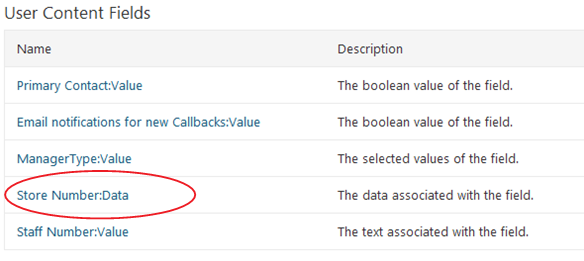
However when you want to use the inbuilt Query module (which is part of the Projection Module), it doesn’t get displayed by default when wanting to add filtering. In other words what we hope to achieve is to show the below when you want to add a filter:
Without any documentation on how to achieve this, and after a little reverse engineering I realised that I needed to override the “Describe” function in the ContentFieldDriver class that was created for the custom field.
It is as simple as writing the following in your field’s Driver:
     protected override  void Describe(Orchard.ContentManagement.Handlers.DescribeMembersContext context)

    {

        context.Member(null,  typeof(string), T("Data"), T("The data associated with the field."));

    }
You will notice the second parameter here passes in a string type. What this in effect does fire the relevant IFieldTypeEditor (in this case the StringFieldTypeEditor which is found in the Projection Module) to add it to the FilterContext which lists the fields to filter as shown above.
10. Form Posts throwing Anti Forgery Exception
This issue is actually related more so with MVC3 rather than orchard itself, however it is important to note that since Orchard uses MVC3, solving this problem is relevant for any custom module implementation that required a postback on the Display view of the module.
Within the display view of the module, if you were to simply put the following form tag :
    <form  action="/OrchardLocal/pending"  method="post">

        <input  id="Search"   name="Search" type="text"  value=""   />

         <input   type="submit" value="Search"  />

    </form>
This would result in the following exception when the submit button is pressed:
System.Web.Mvc.HttpAntiForgeryException
A required anti-forgery token was not supplied or was invalid
This is because MVC3 now has a way to guard against cross-site request forgery. The best way to overcome this is to have a hidden field that verifies that you are in fact the legitimate source of the request as shown below:
     <form   action="/OrchardLocal/pending"   method="post">

        <input  id="Search"   name="Search" type="text"  value=""   />

         <input   type="submit" value="Search"  />

         <input  name="__RequestVerificationToken"  type="hidden"   value="y+2p1g6OrozuycUmsWXGxi7fsmByM6Kj3EGP87FoeNzZI="  />

    </form>
But how do we actually create this hidden field with the correct token? It’s as simple as replacing your form tag with the following razor server-side code:
     @using (Html.BeginFormAntiForgeryPost())

     {

         @Html.TextBox("Search")

         <input  type="submit"   value="Search" />

     }